Overview
This one skips the compiler entirely. A macro-enabled Excel workbook talks to an instrument through GPIBEE, and the readings land in cells: timestamped, formatted, ready to chart. Nothing to build, nothing to install beyond a VISA runtime.
The workbook has two sheets. One is an interactive command panel for poking at an instrument by hand, the Excel counterpart of the Lazarus demo. The other takes a run of measurements and writes them into a table.
Why Excel
Let me be honest about this one: Excel would not be my first choice for talking to a GPIB instrument, and it should not be yours either if you are building something serious. VBA is slow, error handling is awkward, and a workbook is a poor home for anything you intend to maintain for years. Python, C or Pascal are all better tools for the job, and there are tutorials here for each of them.
But sometimes it is exactly the right tool, and it is worth being honest about that too.
A great deal of measurement data ends its life in a spreadsheet. If your output is a column of numbers, a chart and a figure someone pastes into a report, then every other approach spends its first hour getting to where Excel already is. There is no project to set up, no dependencies to pin, no environment to recreate in two years when someone asks you to repeat the measurement. The workbook is the program, the data and the report in one file, and you can mail it to a colleague who will double-click it and have it work.
It is also the tool that is already installed and already familiar. On a bench where the person taking readings is not a programmer, the choice is not Excel against Python; it is Excel against writing numbers on paper. Automating that away is worth a great deal, even in a language none of us would pick for anything else.
Use it for quick logging, for one-off characterisation runs, for handing a repeatable measurement to somebody who does not write code. Reach for a real language when you need speed, timing, decisions, or anything that must still work reliably next year.
Prerequisites
- A GPIBEE, with an instrument on the GPIB bus.
- 64-bit Excel on Windows. The macros use
Declare PtrSafe, which needs VBA7, so Office 2010 or newer. - A VISA implementation installed. See below.
Install a VISA
VISA is the standard API between your code and the instrument, and it is what the macros call. It is not part of Windows and not part of Office, so it has to be installed separately.
NI-VISA and the Keysight IO Libraries Suite work too. Any of them installs a 64-bit visa32.dll in C:\Windows\System32, which is what the macros bind to. The name is confusing and correct: on 64-bit Windows the 64-bit DLL is still called visa32.dll, and Windows hands each process the right one.
Download and open
Macro-enabled workbook with both sheets and the full VBA source. Nothing to compile.
Unzip it and double-click HP34401A_VISA_Excel.xlsm. The .xlsm extension means macro-enabled, which is the whole point here.
Enable the macros
Excel will almost certainly greet you with a yellow bar across the top:

Click Enable Content. Until you do, the buttons are inert: the macros are the program, so with macros disabled there is nothing but a formatted spreadsheet. Excel remembers the decision for this file, so you only do it once.
.xlsm, choose Properties, tick Unblock at the bottom of the General tab, then open it again. That block is applied to the zip on download and inherited by everything unpacked from it.
The two sheets

GPIB Demo is the interactive panel: type a command, press a button, watch what comes back. HP34401A Reader is the logging example: say how many readings you want and it fills a table.
The GPIB Demo panel
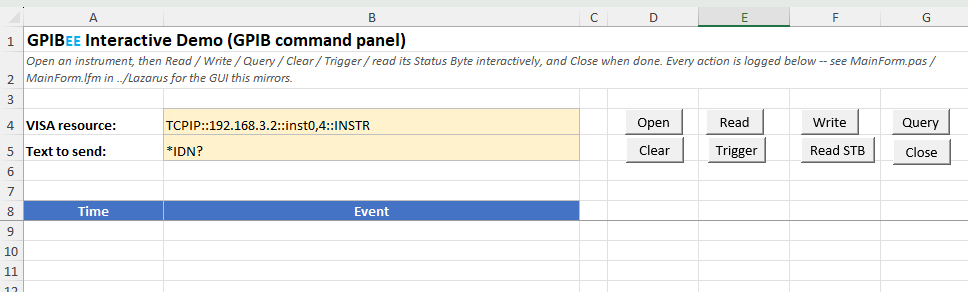
Two cells to fill in. VISA resource is the instrument's address, pre-filled with:
Read from the left: reach the device over TCP/IP, at 192.168.3.2, and talk to GPIB primary address 4 behind it. That address is a GPIBEE connected over USB, which always appears on its default 192.168.3.2. It is used here purely because it is predictable. Over Ethernet everything works identically; you simply enter whatever address the adapter has on your network.
Text to send is the command, pre-filled with *IDN?.
Press Open, then Query. Query writes the command and reads the answer in one step, so on any SCPI instrument that is enough to see it respond. Press Close when you are finished. Every action appends a timestamped line to the log:
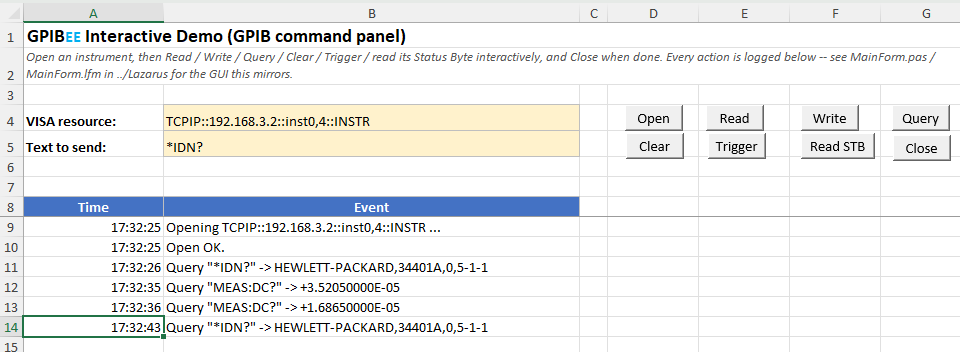
The other buttons cover the rest of the common operations. Write sends the command without reading, for things like *RST that produce no answer. Read fetches a reply on its own. Clear resets the instrument's interface and empties its buffers, which is the first thing to try when an instrument has got itself confused. Trigger sends a Group Execute Trigger. Read STB performs a serial poll and returns the status byte, the usual way to ask whether the instrument has finished or has an error waiting.
That panel is genuinely useful beyond this tutorial. When a measurement script misbehaves, being able to send single commands by hand and see the raw replies settles the "is it the instrument or is it my code" question quickly.
The HP 34401A Reader
The second sheet does the thing Excel is actually good at: it takes a series of readings and puts them in a table.
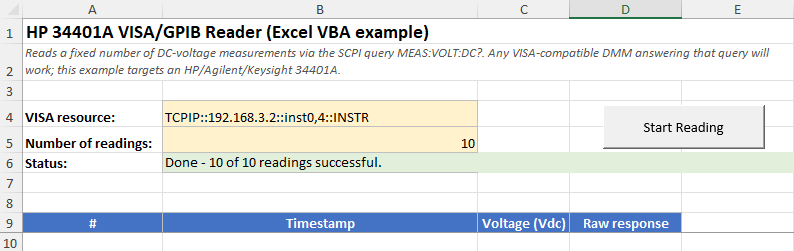
Set the resource name and how many readings you want, then press Start Reading. The macro opens the instrument, sends MEAS:VOLT:DC? the requested number of times, writes each result into the table and closes the session at the end. The status cell tracks progress while it runs.
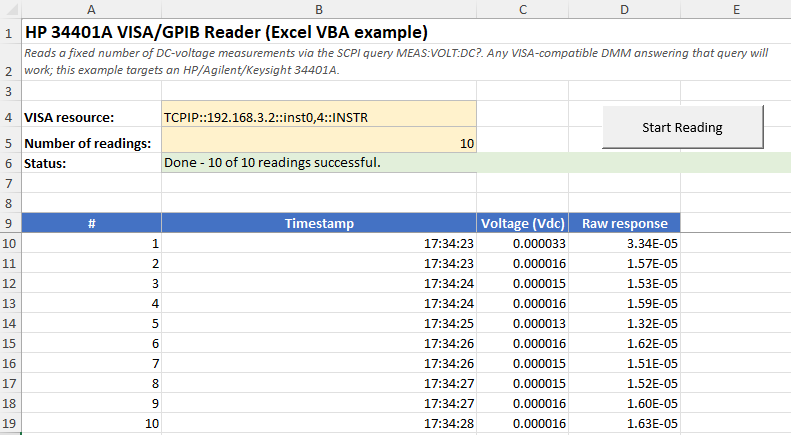
Four columns: the reading number, a timestamp, the parsed voltage, and the raw text the instrument sent. Keeping the raw response is worth the column. When a number looks wrong, the first question is always whether the instrument said something unexpected or the parsing went astray, and with both side by side you can see which.
MEAS:VOLT:DC? is used because it is simple and widely supported. Any VISA-compatible multimeter that answers that query will work; the example targets an HP, Agilent or Keysight 34401A. For a different measurement, change that one string in the macro.
Val() rather than CDbl() on purpose. Instruments always send a dot, while CDbl() follows Windows regional settings, so on a German or French machine it would misread every reading or fail outright. Val() always uses the dot. This trips people up constantly and is worth copying into your own macros.
Charting the readings
Once the numbers are in cells, the rest is ordinary Excel. Select the voltage column, choose Insert → Line chart, and the run is a picture:
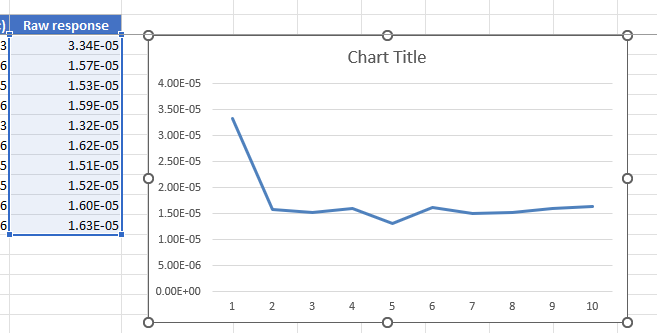
This is the payoff, and the reason the Excel route exists at all. In any other language, getting from a working measurement to a chart someone can look at is another library and another hour. Here it is two clicks, and the file you email already contains the data, the chart and the code that produced them.
Looking at the macros
The code lives in the workbook. To see it, open the Developer tab and click Visual Basic:

Alt+F11 does the same.Alt+F11, which opens the editor whether the tab is shown or not.
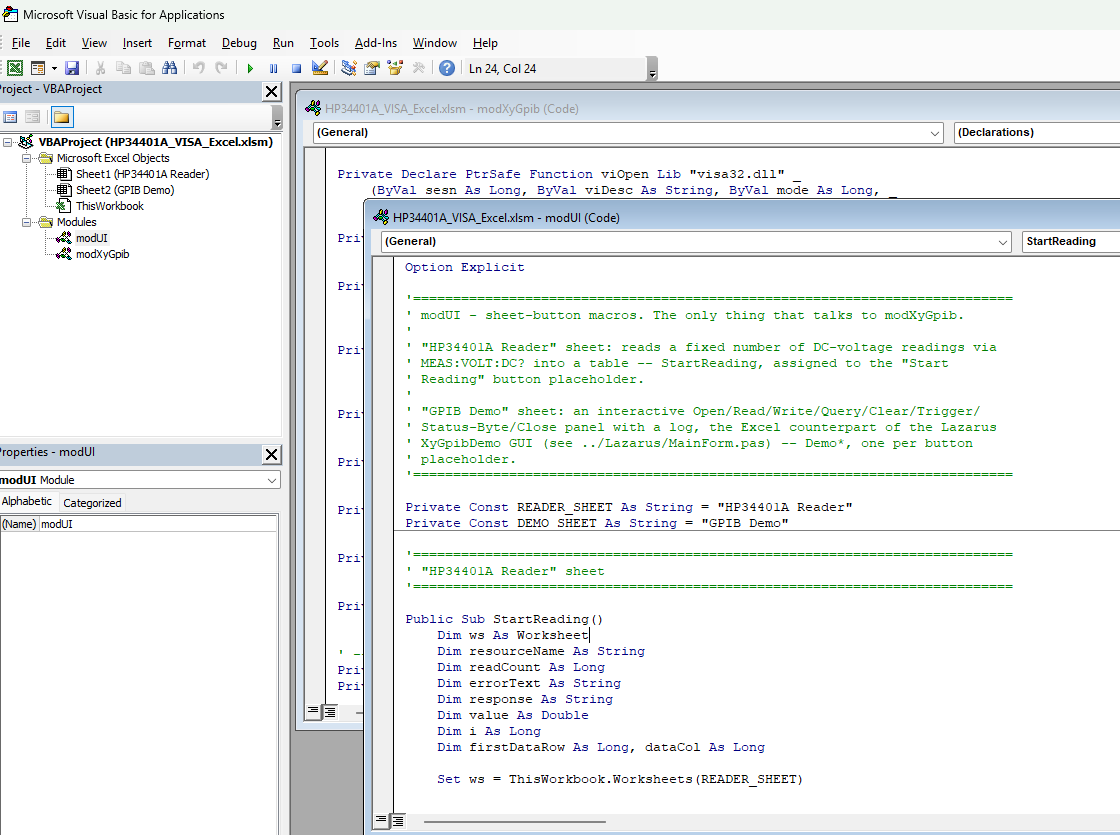
The editor opens on the project, with two modules under Modules:
| Module | What it is |
|---|---|
modUI |
The sheet macros. StartReading behind the Start Reading button, and DemoOpen, DemoRead, DemoWrite, DemoQuery, DemoClear, DemoTrigger, DemoStatusByte, DemoClose behind the eight panel buttons. This is the layer that reads cells, writes results and appends to the log. It is the part you would rewrite for your own measurement. |
modXyGpib |
The VISA layer. The Declare PtrSafe statements that bind to visa32.dll, plus the XyGpib* functions that wrap them into something easier to call. You should not need to change anything here. |
The split matters: modUI never touches VISA directly, and modXyGpib knows nothing about sheets or cells. To build your own measurement, copy modXyGpib into your workbook untouched and write your own equivalent of modUI.
LoadLibrary. VBA cannot do that as cleanly, so Declare PtrSafe ... Lib "visa32.dll" binds by name on the first call instead. The practical consequence: with no VISA installed you get a VBA "file not found" error the moment you press a button, rather than a tidy message at startup.
Termination and timeout
Termination is how both ends know a message has ended, and it is the usual reason a first attempt hangs until it times out.
This example keeps it simple: XyGpibWrite appends a line feed to everything it sends, and XyGpibRead strips a trailing LF, CR or CRLF from whatever comes back. That suits nearly every SCPI instrument, including the 34401A. Unlike the C and Pascal examples there is no choice to make, which is deliberate for a spreadsheet.
If your instrument wants a carriage return instead, change the one line in modXyGpib that appends vbLf to vbCr or vbCrLf. The stripping on the read side already handles all three.
The timeout sits near the top of modXyGpib:
Private Const IO_TIMEOUT_MS As Long = 3000
Private Const READ_BUFFER_SIZE As Long = 4096
It is in milliseconds and applies to every read and write. Three seconds suits most instruments, and it is an upper bound rather than a delay: a read that gets its answer at once returns at once. Raise it if you trigger long measurements, because a sweep that takes ten seconds needs a timeout longer than the sweep.
READ_BUFFER_SIZE caps how much a single read can return. 4096 bytes is generous for readings and identification strings; raise it if you are pulling back long error lists or captured data.
XyGpib reference
Everything modXyGpib exposes. Each function returns True on success, and passes back a readable message in errorText on failure, so no VISA status codes reach your macro.
| Function | What it does |
|---|---|
| Open and close | |
XyGpibOpen(resourceName As String, ByRef errorText As String) As Boolean |
Opens the resource and sets the timeout. One session at a time. |
XyGpibClose(ByRef errorText As String) As Boolean |
Closes the session. Safe to call when nothing is open. |
XyGpibIsOpen() As Boolean |
Whether a session is currently open. Used to enable and disable the panel buttons, and to recover if a previous run was interrupted. |
| Text transfers | |
XyGpibWrite(text As String, ByRef errorText As String) As Boolean |
Sends text with a line feed appended. |
XyGpibRead(ByRef response As String, ByRef errorText As String) As Boolean |
Reads a reply into response, stripping the trailing CR/LF. |
XyGpibQuery(command As String, ByRef response As String, ByRef errorText As String) As Boolean |
Write then read, in one call. The one you will use most. |
| GPIB operations | |
XyGpibClear(ByRef errorText As String) As Boolean |
Device clear: resets the instrument's interface and empties its buffers. |
XyGpibTrigger(ByRef errorText As String) As Boolean |
Sends a Group Execute Trigger. |
XyGpibReadStatusByte(ByRef statusByte As Byte, ByRef errorText As String) As Boolean |
Serial poll: returns the instrument's status byte. |
| Diagnostics | |
XyGpibGetLastError() As String |
The most recent VISA error as readable text. |
A complete measurement is five lines:
Dim response As String, errorText As String

If XyGpibOpen("TCPIP::192.168.3.2::inst0,4::INSTR", errorText) Then
    If XyGpibQuery("MEAS:VOLT:DC?", response, errorText) Then
        Range("A1").Value = Val(response)
    End If
    XyGpibClose errorText
End If
What the XyGPIB VBA module is and what not
XyGpib is example code, not a product. It is one VBA module inside the workbook you just downloaded. There is no add-in to install, no version to track, no release notes and no support commitment behind it. It is yours to read, change, rename, cut down or delete outright.
It is meant to be taken and used. That is the point of it being here: copy modXyGpib into your own workbook and you have GPIBEE talking to an instrument the same afternoon. The Declare statements with the right types, the session handling, the termination and the error text are all solved already, and getting the VISA declarations right in VBA is exactly the part that costs an afternoon of its own.
Working with VISA directly is a perfectly good choice. Everything XyGpib does, VISA does; it simply exposes fewer operations with an easier interface. The Declare statements are right there at the top of the module to copy and extend.
Troubleshooting
| Problem | Solution |
|---|---|
| Buttons do nothing at all | Macros are still disabled. Look for the yellow bar and click Enable Content, or unblock the file in its Properties. |
| "File not found: visa32.dll" or error 53 | No VISA is installed on this PC. Install R&S VISA and reopen the workbook. |
Compile error on the Declare lines |
Excel is too old for PtrSafe, which needs Office 2010 or newer. |
Open fails with 0xBFFF0011 |
The GPIBEE is not reachable at that IP, or no instrument answers at that GPIB address. Check the address in a browser, then use the GPIB scan in the web interface. |
| Write works, Read always times out | Read termination. Your instrument is not sending a line feed. Try Read STB first to confirm it is alive, then adjust the terminator in modXyGpib. |
| Every reading comes out as 0 | The instrument answered with something that is not a number, a SCPI error string for instance. Look at the Raw response column to see what actually arrived. |
| Long measurements fail, short ones work | Raise IO_TIMEOUT_MS past the longest operation you trigger. |
| Excel freezes during a long run | Expected. VBA is single-threaded and the readings happen on the UI thread. The macro calls DoEvents between readings to keep the status cell updating, but the window will still feel sluggish. |